Classroom Mode · Class reports
A report for every class, free
Every saved class in Classroom Mode gets a report that builds up lesson by lesson. See how the class is doing, which students may need you, and which questions to go over again.
Free on every plan. Quizzy shows statistics, never grades: whether 62% is an A or a C is your call.
See one
A sample class, 8B
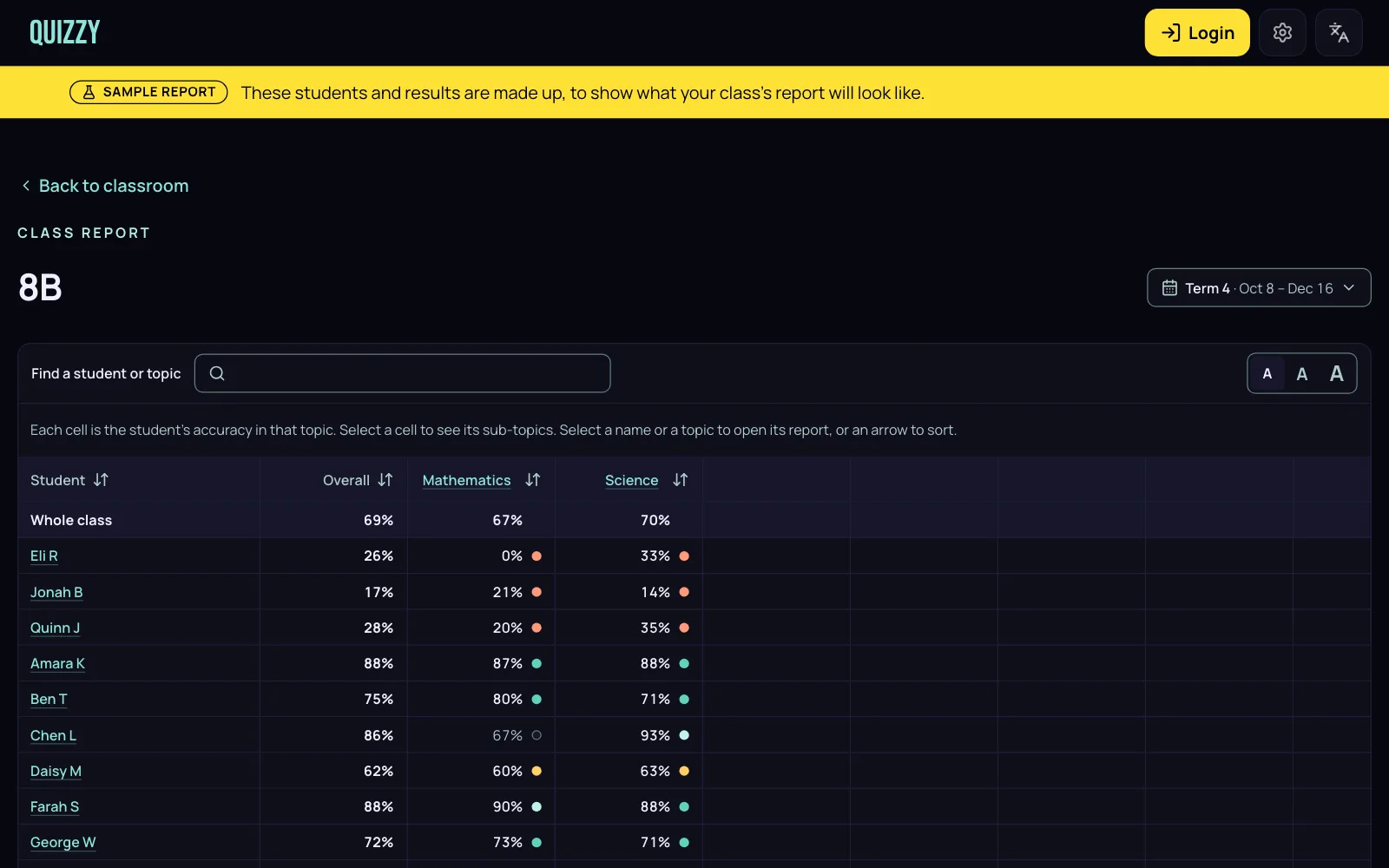
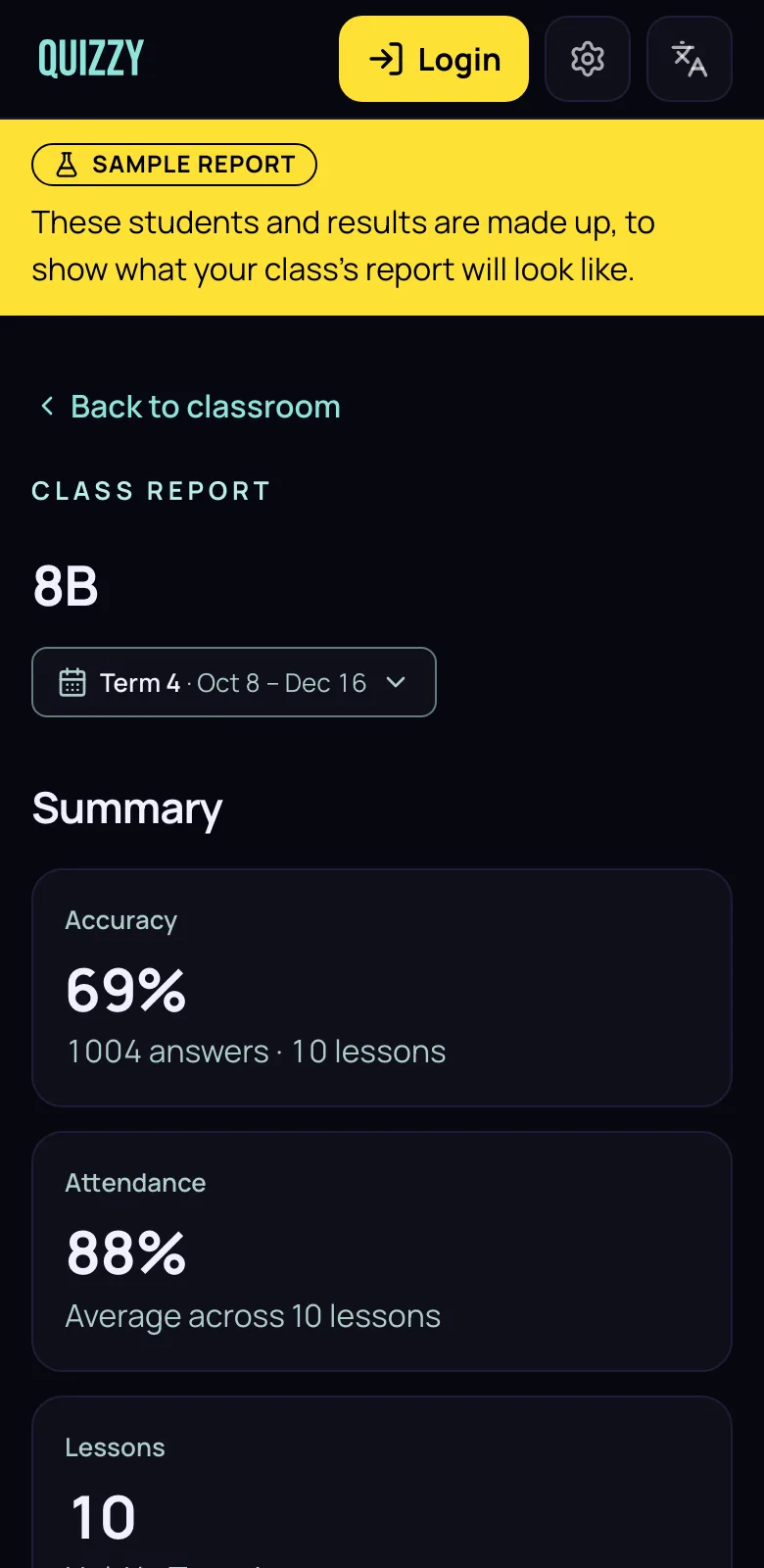
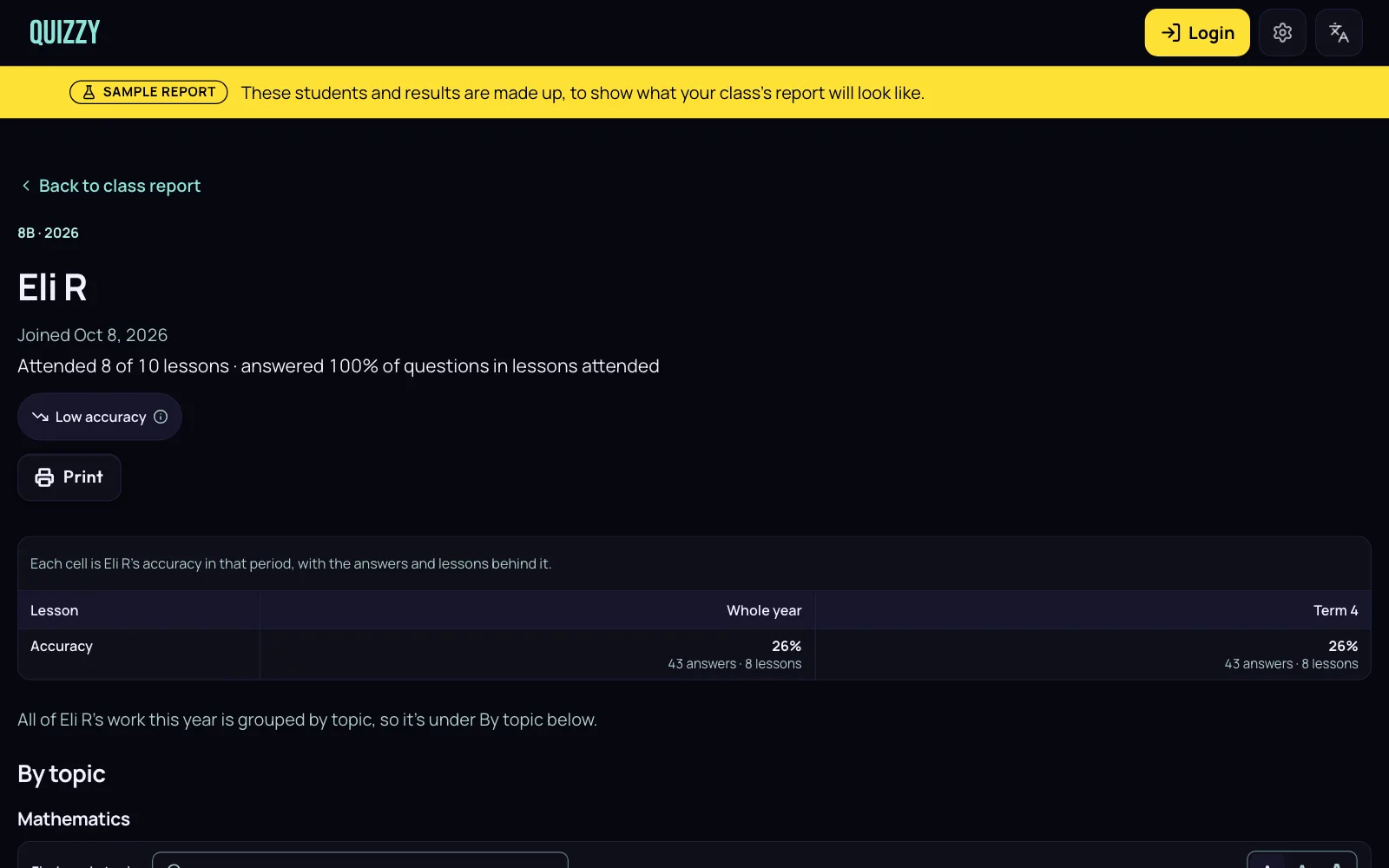
The screenshots show the sample report. Its class, students and results are made up, and a banner on every page says so.
What it shows
Everything a check for understanding should tell you
Accuracy and attendance
The class’s accuracy and attendance across the lessons you choose, and how many lessons were held. Every figure says how many answers it rests on.
Students who may need you
A Low accuracy badge marks a student under 50% in 3 of their last 4 lessons, and Missed lessons marks one absent from the last 3. Tap a badge to see its rule: it’s a hint, not a verdict.
The questions missed most
The questions the class answered wrong most often, so you know what to go over again tomorrow.
Results by topic
Tag lessons with a topic and sub-topic, such as Mathematics · Number, and see the class’s accuracy in each, coloured from Not yet to Exceeded. The Australian Curriculum’s learning areas are built in, and you can add your own.
A report for each student
When they joined, the lessons they attended, the share of questions they answered, any badges, and their accuracy in each topic, period by period. Print it or save it as a PDF.
Terms, months or any days
View a term, a month, the whole year, or any span you pick on the calendar, such as one unit of work. Set your term dates once and every class uses them.
How it fills up
Save the class, teach, open the report
Save your class
Add your students in Classroom Mode, by hand or from a spreadsheet, and click Save & reuse. Signing in is free and saves up to 6 classes of up to 60 students.
Run card lessons with it
Load the class from Saved classes and run a lesson: students hold up printed cards and your phone reads the room. Each lesson’s results are saved to the class.
Open the report
On a computer, open Saved classes and click Report next to the class. Straight after a lesson, your phone offers See class report.
Export it when you need to
Download the period you’re viewing as a spreadsheet (.xlsx) or CSV, with one row per student and two columns for each sub-topic.
FAQ
Common questions
See how your class is doing. Lesson by lesson.
Open the sample to see a report, or save your class and start a lesson. It’s free.